








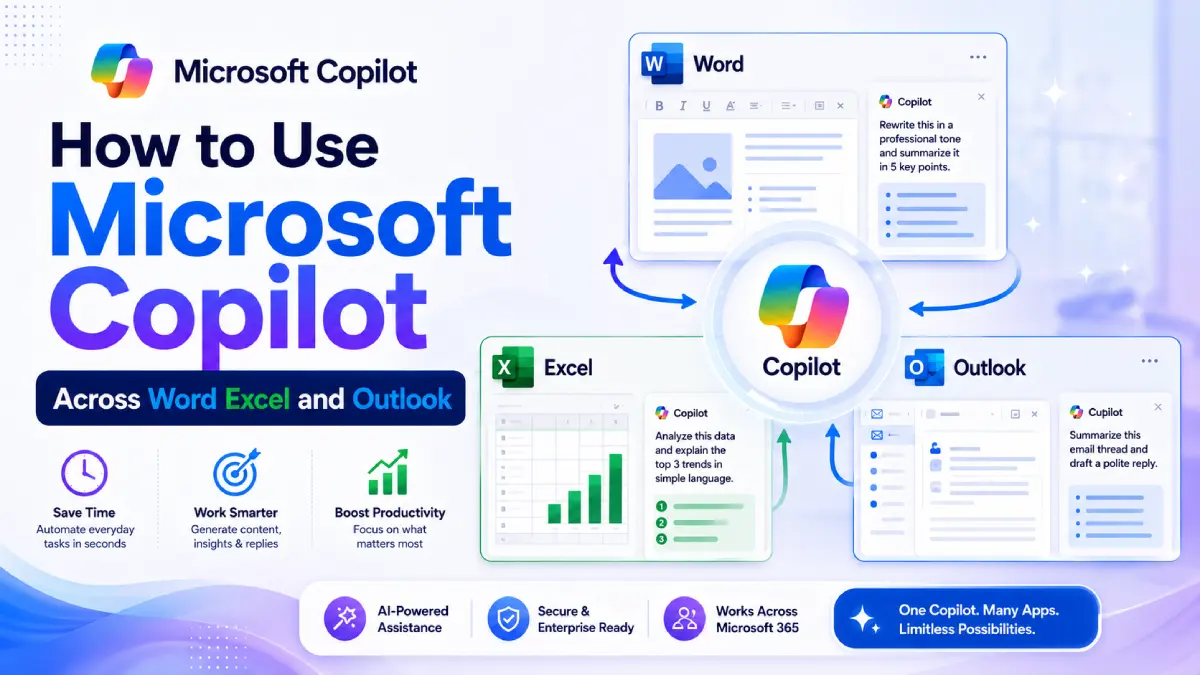
Have you ever spent hours rewriting documents, analyzing spreadsheets, responding to long email threads, and preparing presentations?
Do you feel like switching between Microsoft apps slows down your work instead of helping it?
If so, learning How to Use Microsoft Copilot effectively can transform the way you work. Microsoft Copilot is more than an AI assistant inside individual apps. When used across Microsoft 365, it becomes a connected productivity system that helps you write, analyze, present, communicate, and organize information faster.
Many users make the mistake of treating Word, Excel, Outlook, PowerPoint, Teams, and OneNote as separate tools. The real value comes when you use them together as one workflow.
In this guide, you’ll learn How to Use Microsoft Copilot across Microsoft 365 applications, practical prompts you can use immediately, and the best ways to improve productivity every day.
What Is Microsoft Copilot?
Microsoft Copilot is Microsoft’s AI-powered assistant integrated into Microsoft 365 applications. It helps users generate content, summarize information, analyze data, automate repetitive tasks, and improve productivity.
As a modern Microsoft AI assistant, Copilot works directly inside applications such as:
- Microsoft Word
- Microsoft Excel
- Microsoft PowerPoint
- Microsoft Outlook
- Microsoft Teams
- Microsoft OneNote
Instead of manually handling every task, you can provide natural language instructions and let Copilot assist with the work.



Why Learning How to Use Microsoft Copilot Matters
The biggest productivity gains don’t come from using Copilot in just one application.
They come from creating a connected workflow across Microsoft 365.
The most effective pattern is simple:
- Use a short prompt
- Request a specific output
- Define a clear next action
When this workflow is repeated throughout your day, the time savings begin to compound.
For example:
- Draft a report in Word
- Analyze supporting data in Excel
- Convert the report into PowerPoint slides
- Share updates through Outlook
- Review meeting outcomes in Teams
- Store organized notes in OneNote
This connected process is where Microsoft Copilot delivers its greatest value.
How to Use Microsoft Copilot Across Microsoft 365
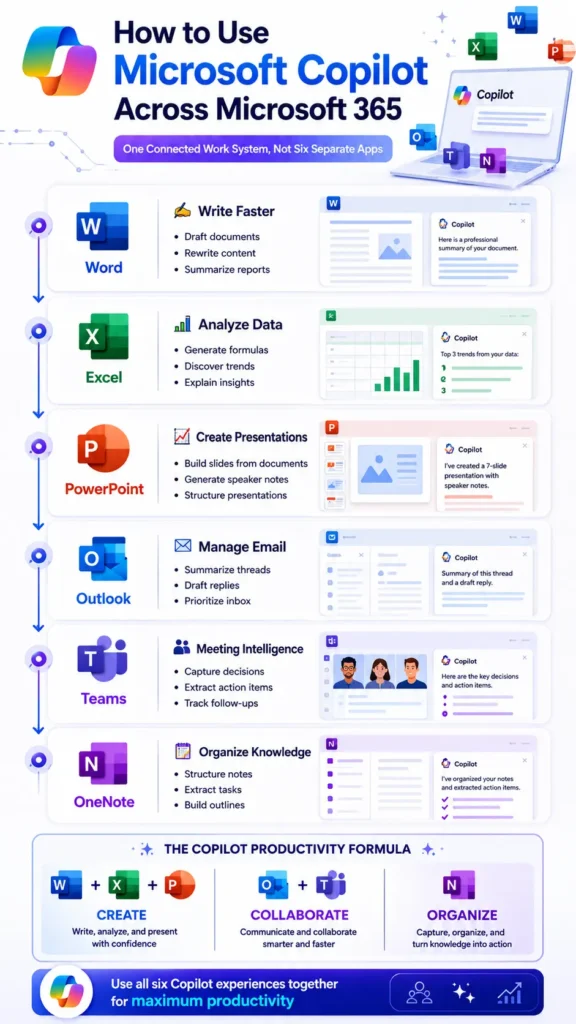
The following practical examples show how to use Copilot across daily business tasks.
1. How to Use Copilot for Word
Copilot for Word is designed to help users write faster, communicate clearly, and improve document quality.
Whether you’re creating reports, proposals, summaries, or business documents, Copilot can significantly reduce writing time.
What Copilot Does in Word
- Drafts new documents
- Rewrites existing content
- Summarizes lengthy documents
- Improves grammar and clarity
- Adjusts tone and style
Best Use Cases
- Business proposals
- Reports
- Executive summaries
- Internal documentation
- Client communications
Recommended Prompt
“Rewrite this in a professional tone and reduce it to 5 key points.”
Practical Example
Before using Copilot:
- Long document
- Unclear priorities
- Difficult to review quickly
After using Copilot:
- Concise summary
- Clear takeaways
- Faster decision-making
When learning How to Use Microsoft Copilot, Word is often the easiest place to start because the improvements are immediately visible.
2. How to Use Copilot for Excel
Many professionals collect large amounts of data but struggle to turn numbers into meaningful insights.
This is where Copilot for Excel becomes extremely valuable.
What Copilot Does in Excel
- Generates formulas
- Analyzes datasets
- Creates pivot tables
- Identifies trends
- Explains results in simple language
Best Use Cases
- KPI reporting
- Sales analysis
- Performance dashboards
- Financial tracking
- Data cleaning
Recommended Prompt
“Analyze this data and explain the top 3 trends in simple language.”
For better insights, ask Copilot to explain:
- The trend
- The likely cause
- The business decision it supports
Practical Example
Instead of manually reviewing thousands of rows, Copilot can quickly identify:
- Revenue growth patterns
- Seasonal fluctuations
- Customer behavior trends
- Performance anomalies
This makes Copilot for Excel particularly useful for managers, analysts, marketers, and business owners.
3. How to Use Copilot for PowerPoint
Creating presentations can consume hours of valuable work time.
Microsoft Copilot helps reduce that effort dramatically.
What Copilot Does in PowerPoint
- Builds slide decks from documents
- Creates presentations from prompts
- Generates speaker notes
- Structures content logically
Best Use Cases
- Client presentations
- Team updates
- Training materials
- Project reports
- Executive briefings
Recommended Prompt
“Turn this document into a 7-slide presentation with speaker notes.”
Review Checklist
After Copilot creates slides, verify that each slide contains:
- One key message
- One visual concept
- One takeaway
This simple review process improves presentation quality while preserving speed.
4. How to Use Copilot for Outlook
Email remains one of the biggest productivity challenges for modern professionals.
Long email chains often waste valuable time.
That’s why Copilot for Outlook is one of the most practical Microsoft 365 AI features.
What Copilot Does in Outlook
- Summarizes email threads
- Drafts responses
- Suggests replies
- Prioritizes inbox activity
Best Use Cases
- Busy inbox management
- Client communications
- Project discussions
- Executive updates
Recommended Prompt
“Summarize this email thread and draft a polite reply.”
Customize the Tone
You can also instruct Copilot to use a specific tone:
- Direct
- Warm
- Professional
- Firm
- Executive
Practical Example
Instead of reading a 30-message conversation from the beginning, Copilot can provide:
- Key discussion points
- Important decisions
- Outstanding questions
- A ready-to-send response
For many professionals, Copilot for Outlook delivers immediate daily time savings.
5. How to Use Copilot for Teams
Meetings often generate valuable discussions but poor documentation.
Important decisions can easily get buried.
What Copilot Does in Teams
- Creates meeting summaries
- Extracts action items
- Highlights decisions
- Tracks follow-up tasks
Best Use Cases
- Team meetings
- Project reviews
- Client discussions
- Leadership meetings
Recommended Prompt
“Summarize the key decisions and action items from this meeting.”
For stronger results, also ask Copilot to identify:
- Task owners
- Deadlines
- Blockers
- Unresolved questions
Practical Example
After a one-hour meeting, Copilot can generate a structured summary that includes:
- Decisions made
- Responsibilities assigned
- Next steps
- Follow-up requirements
This ensures accountability and reduces confusion.
6. How to Use Copilot for OneNote
Many professionals collect notes but rarely organize them effectively.
Ideas, meeting notes, tasks, and research often become scattered.
What Copilot Does in OneNote
- Organizes content
- Summarizes notes
- Extracts tasks
- Creates structured outlines
Best Use Cases
- Meeting notes
- Brainstorming sessions
- Project planning
- Knowledge management
Recommended Prompt
“Organize these notes into clear sections and extract all action items.”
Practical Example
Raw notes often contain:
- Random thoughts
- Incomplete tasks
- Mixed topics
Copilot converts these notes into:
- Structured categories
- Clear action items
- Prioritized tasks
- Organized documentation
This turns OneNote into a true productivity hub.
Microsoft Copilot Prompts for Daily Productivity
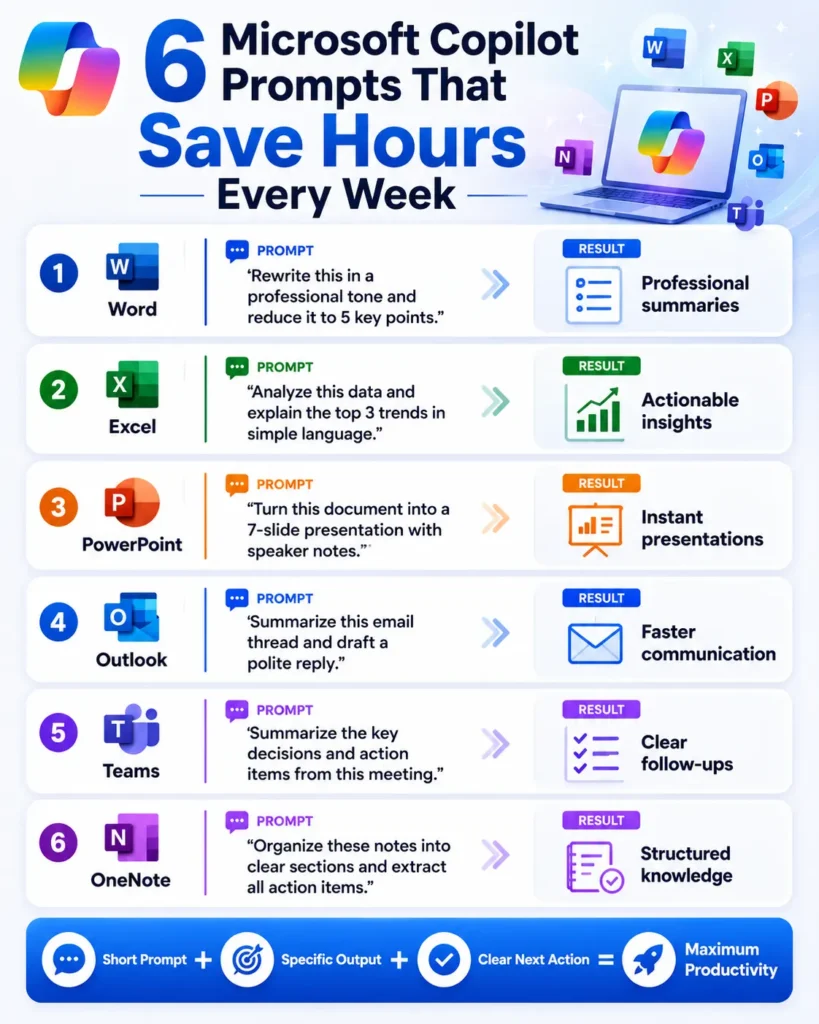
| Microsoft 365 App | Purpose | Recommended Prompt | Expected Outcome |
|---|---|---|---|
| Word | Write faster, improve clarity, and create professional documents | “Rewrite this in a professional tone and reduce it to 5 key points.” | Converts lengthy content into a concise executive summary that is easier to review and share. |
| Excel | Turn raw data into actionable insights | “Analyze this data and explain the top 3 trends in simple language.” | Identifies key trends, explains possible causes, and highlights decisions supported by the data. |
| PowerPoint | Create presentations quickly from existing content | “Turn this document into a 7-slide presentation with speaker notes.” | Generates a structured slide deck with presentation-ready talking points. |
| Outlook | Manage emails more efficiently | “Summarize this email thread and draft a polite reply.” | Provides a quick summary of lengthy conversations and prepares a professional response. |
| Teams | Capture decisions and action items from meetings | “Summarize the key decisions and action items from this meeting.” | Creates a meeting recap with decisions, responsibilities, deadlines, and follow-up tasks. |
| OneNote | Organize notes and extract important tasks | “Organize these notes into clear sections and extract all action items.” | Transforms scattered notes into structured information with actionable next steps. |
Quick Summary: Microsoft Copilot Across Microsoft 365
| Application | Main Benefit |
|---|---|
| Word | Writing and document creation |
| Excel | Data analysis and insights |
| PowerPoint | Presentation creation |
| Outlook | Email productivity |
| Teams | Meeting summaries |
| OneNote | Note organization |
The Microsoft Copilot Productivity Formula
One simple way to understand the Microsoft 365 workflow is:
| Workflow Area | Applications |
|---|---|
| Create | Word + Excel + PowerPoint |
| Collaborate | Outlook + Teams |
| Organize | OneNote |
Together, these applications form a complete productivity ecosystem powered by AI.
Best Practices for Using Microsoft Copilot Effectively
If you want better results from Copilot, follow these guidelines.
Be Specific
Avoid vague requests.
Instead of:
“Help me with this document.”
Use:
“Summarize this document into 5 executive-level bullet points.”
Define the Output
Specify what you want.
Examples:
- Summary
- Presentation
- Email response
- Trend analysis
- Action-item list
Include Context
Provide background information whenever possible.
For example:
“Analyze this sales data from Q1 and identify the top 3 performance drivers.”
Review AI Output
Copilot accelerates work but should not replace human judgment.
Always review:
- Facts
- Calculations
- Recommendations
- Strategic decisions
Use a Connected Workflow
The biggest gains come when Copilot helps move work across applications rather than staying inside one app.
Common Mistakes to Avoid
When learning How to Use Microsoft Copilot, avoid these common issues:
Using Generic Prompts
Broad requests usually produce broad answers.
Specific prompts create better outputs.
Ignoring Follow-Up Questions
Copilot works best through conversation.
Refine results with additional prompts.
Skipping Human Review
AI-generated content should always be validated before sharing externally.
Treating Apps as Separate Tools
The real productivity boost comes from connecting Word, Excel, PowerPoint, Outlook, Teams, and OneNote into one workflow.
Frequently Asked Questions
What is Microsoft Copilot?
Microsoft Copilot is an AI-powered assistant integrated into Microsoft 365 applications that helps users create content, analyze data, summarize information, and automate routine tasks.
How do I start using Microsoft Copilot?
Begin with simple tasks inside Word, Excel, or Outlook. Use clear prompts, request specific outputs, and refine results with follow-up instructions.
Is Copilot available in Excel?
Yes. Copilot for Excel can analyze data, create formulas, identify trends, generate reports, and explain insights in natural language.
Can Copilot summarize emails?
Yes. Copilot for Outlook can summarize long email threads, highlight important details, and draft responses based on your preferred tone.
Does Copilot work in Teams meetings?
Yes. Copilot can summarize meetings, identify action items, track decisions, and provide follow-up information.
What is the best way to learn How to Use Microsoft Copilot?
The best approach is to use Copilot across multiple Microsoft 365 applications and build connected workflows. Start with practical prompts and gradually expand to more advanced use cases.
Final Thoughts on How to Use Microsoft Copilot
Understanding How to Use Microsoft Copilot is no longer just about learning a single AI feature. It is about creating a smarter way of working across Microsoft 365.
When used correctly, Copilot helps you:
- Write faster in Word
- Analyze data in Excel
- Build presentations in PowerPoint
- Manage email in Outlook
- Capture decisions in Teams
- Organize knowledge in OneNote
The most productive users treat Microsoft 365 as one connected workflow rather than a collection of separate applications. By combining these six Copilot experiences, you can reduce repetitive work, improve communication, and focus more on meaningful tasks.
Looking for more AI productivity guides, AI writing resources, and practical AI tool tutorials? Visit AIToolsay at aitoolsay.com and explore our growing collection of AI resources. You can also try AI-powered tools through our AI Tools directory at aitoolsay.com/ai-tools.
Thank you for reading. Join the AIToolsay community through social media, push notifications, and our newsletter to receive the latest AI tool updates, productivity tips, tutorials, and industry insights as soon as they’re published.