




Have you ever spent hours designing an app in Google Stitch only to watch your layout break after a simple change?
Have you asked Stitch to add one feature and suddenly found it rebuilding an entire screen?
Are you wondering why some prompts generate beautiful interfaces while others create unexpected results?
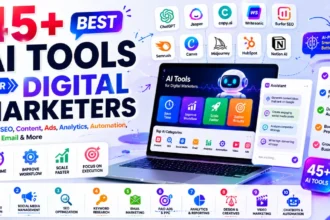
If those questions sound familiar, this Google Stitch Prompt Guide is exactly what you need.
Google Stitch is a powerful AI-powered interface design tool, but its results depend heavily on how you write prompts. Small changes in wording can dramatically affect the generated design. Understanding effective prompting can save hours of redesign work and help you create professional interfaces faster.
In this guide, you’ll learn the best practices from Google’s Stitch prompting recommendations, real-world examples, common mistakes, and practical workflows that consistently produce better results.
Whether you’re a designer, developer, entrepreneur, or product manager, this guide will help you get more reliable and predictable outcomes from Stitch.
For more AI resources and productivity tools, visit AIToolsay at https://aitoolsay.com.
What Is Google Stitch?
Google Stitch is an AI-powered UI design tool that transforms natural language prompts into interface designs.
Instead of manually creating layouts, users describe an app, screen, feature, or design style using text prompts. Stitch then generates screens, layouts, components, and visual themes based on those instructions.
The quality of the output depends greatly on prompt clarity.
That is why understanding a proper Google Stitch Prompt Guide is essential.
Why Prompt Writing Matters in Stitch
Unlike traditional design software, Stitch relies on AI interpretation.
If instructions are vague, Stitch fills in missing details on its own.
When prompts become overly complex, Stitch may:
- Rebuild existing layouts
- Ignore previous design decisions
- Misinterpret requirements
- Change unrelated elements
- Generate inconsistent screens
Good prompts reduce these issues and provide more predictable outcomes.
Core Rule of the Google Stitch Prompt Guide
The most important lesson is simple:
Start broad, then refine incrementally.
Instead of describing an entire application in extreme detail from the beginning, create a foundation first and then improve individual screens step-by-step.
Recommended Workflow
| Stage | Goal |
|---|---|
| Step 1 | Create overall app concept |
| Step 2 | Generate primary screens |
| Step 3 | Refine one screen at a time |
| Step 4 | Modify individual components |
| Step 5 | Improve colors, typography, and imagery |
| Step 6 | Final polish and testing |
This process gives Stitch a stable foundation and reduces unwanted redesigns.
Starting a Project: High-Level vs Detailed Prompts
One of the most valuable lessons in this Google Stitch Prompt Guide is choosing the right level of detail.
High-Level Prompt
Use broad prompts when exploring ideas or brainstorming.
Example:
An app for marathon runners.
This allows Stitch to generate concepts and layouts freely.
Detailed Prompt
Use detailed prompts when you already know your requirements.
Example:
An app for marathon runners to engage with a community, find training partners, get coaching advice, and discover nearby races.
This produces more targeted results.
When to Use Each
| Prompt Type | Best For |
|---|---|
| High-Level | Brainstorming |
| Medium Detail | MVP creation |
| Highly Detailed | Specific production screens |
Set the Vibe with Adjectives
Many users overlook this technique.
Adjectives strongly influence:
- Color schemes
- Typography
- Imagery
- Layout personality
- User experience tone
Example 1
A vibrant and encouraging fitness tracking app.
Example 2
A minimalist and focused meditation app.
Notice that neither prompt specifies colors or fonts directly, yet Stitch can infer different visual directions.
Google Stitch Prompt Examples for Better Results
Let’s examine practical examples.
Example: Fitness App
Prompt
Create a fitness coaching application for beginner runners. Use a modern and energetic design with motivational visuals and progress tracking.
Example: Productivity App
Prompt
Create a minimalist productivity dashboard for remote teams with task management, team updates, and calendar integration.
Example: Learning Platform
Prompt
Design an online learning platform with course browsing, progress tracking, quizzes, and certification management.
These examples give Stitch enough context without overwhelming it.
Refining Your App Screen by Screen
One of the most important sections of this Google Stitch Prompt Guide is learning how to refine designs properly.
Google recommends making specific, incremental changes.
Good Prompt
On the homepage, add a search bar to the header.
Good Prompt
Increase the size of the primary call-to-action button on the login screen and use the brand’s blue color.
Poor Prompt
Redesign the homepage, add search, improve colors, change navigation, move buttons, add icons, and update the layout.
The poor example introduces too many variables simultaneously.
The One-Change Rule
Many experienced Stitch users discover the same lesson:
One major change per prompt.
Benefits include:
- Better consistency
- Easier troubleshooting
- Less layout breakage
- More predictable outcomes
Instead of requesting five modifications together, create five separate prompts.
Real-World Case Study: Factory Operator Dashboard
A practical example demonstrates why prompt discipline matters.
I spent a lot of time trying to build a task dashboard for factory operators where each task had two rows.
The first row displayed:
- Task title
- Operator name
- Sector
- Machine
- Deadline
- Status
The second row displayed the full task description spanning the width of the table.
At first, Stitch created the structure perfectly.
The problems began when additional changes were introduced.
What Went Wrong
My first prompt worked perfectly because it focused on a single objective.
After that, I asked Stitch to add filter dropdowns.
Instead of preserving the layout, Stitch recreated large parts of the screen and broke the structure.
Every time multiple changes were combined into a single prompt, Stitch started forgetting the original design.
Examples included:
- Adding filters and changing page title alignment
- Adding filters and icons together
- Mixing layout updates with UI component changes
The more changes included in a prompt, the more likely Stitch was to rebuild the screen.
What Finally Worked
After significant trial and error, the solution was to break everything into small, focused prompts.
Prompt 1: Create the Table Structure
Create a web dashboard to display a task list for factory operators.
Each task should appear as two rows.
First row: Task title, Operator name, Sector, Machine, Deadline, and Status.
Second row: Task description that spans the full width below the first row.
Use a clean, modern style suitable for fullscreen display in an industrial setting.
Prompt 2: Add Filters
Above the task table, add a horizontal row of filter dropdowns for:
- Task title
- Operator name
- Sector
- Machine
- Deadline
- Status
The filters should be evenly spaced and styled minimally.
Prompt 3: Align the Title and Add Settings
Move the page title to the left side of the screen, aligned with the task table.
Add a small gear icon to the top-right corner of the screen for admin settings access.
Following this process fixed the dashboard completely.
The lesson is simple:
Use short, focused prompts and avoid combining features in one request.
This is one of the most useful Google Stitch Prompt Examples for building complex dashboards and business applications.
Designing E-Commerce Pages with Stitch
Stitch performs particularly well when screen goals are clearly defined.
Example: Tea Store Product Page
Product detail page for a Japandi-styled tea store. Sells herbal teas and ceramics. Neutral minimal colors, black buttons, soft elegant font.
Example: Athletic Apparel Store
Product detail page for Japanese workwear-inspired men’s athletic apparel. Dark minimal design, dark blue primary color, natural fabrics, and subtle imagery.
These prompts define both functionality and visual style.
How to Control App Themes in Stitch
Changing Colors
You can request exact colors.
Example:
Change primary color to forest green.
You can also describe a mood.
Example:
Update the theme to a warm and inviting color palette.
Changing Fonts
Typography changes are easy to control.
Example:
Use a playful sans-serif font.
Example:
Change headings to a serif font.
Styling Buttons and Inputs
Example:
Make all buttons have fully rounded corners.
Example:
Give input fields a 2px solid black border.
Combined Theme Example
Book discovery app with serif typography and light green accent colors.
How to Modify Images in Stitch
Image editing works best when you clearly identify the image you want to modify.
Targeting General Images
Change the background of all product images on the landing page to light taupe.
Targeting a Specific Image
On the Team page, update the image of Dr. Carter and change her lab coat to black.
Specific references improve accuracy.
Matching Images with Theme Changes
When changing theme colors, also update imagery.
Example
Update the theme to light orange. Ensure all images and illustrative icons match the new color scheme.
This helps maintain consistency throughout the application.
Changing App Language
Localization is straightforward.
Example Prompt
Switch all product copy and button text to Spanish.
This updates text across the application while preserving design structure.
AI Prompt Writing Tips for Stitch
These AI Prompt Writing Tips consistently improve results.
Be Clear and Concise
Avoid vague instructions.
Use UI and UX Keywords
Helpful terms include:
- Navigation bar
- Hero section
- Sidebar
- Card layout
- Dashboard widget
- Call-to-action button
- Modal window
Reference Elements Specifically
Instead of saying:
Change the button.
Use:
Change the primary button on the sign-up form.
Specific instructions create better outcomes.
Review and Refine
If Stitch does not produce the desired result:
- Rephrase the prompt
- Add context
- Reduce complexity
- Focus on one change
Best Google AI Prompt Examples
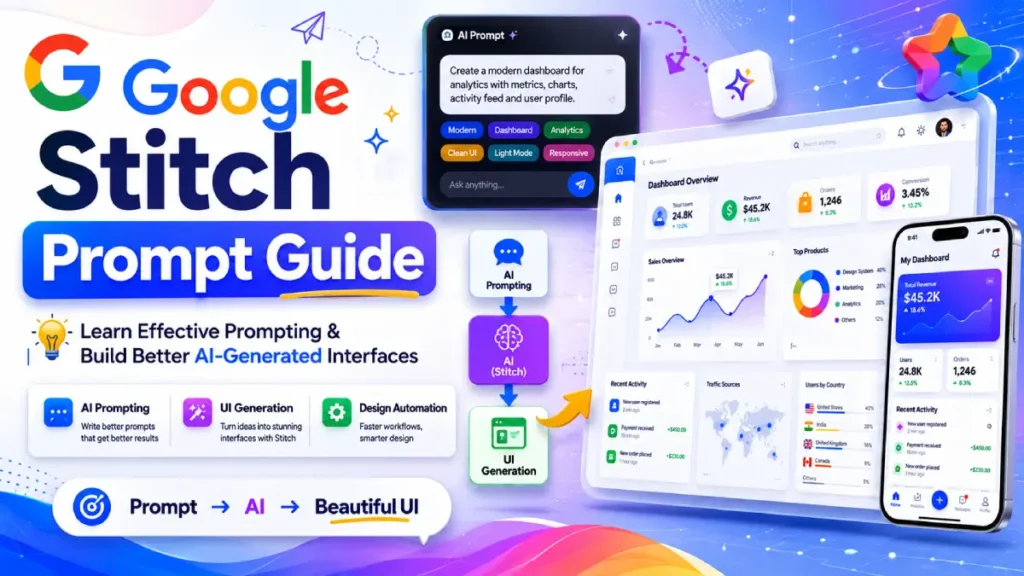
SaaS Dashboard
Create a SaaS analytics dashboard with KPI cards, charts, activity feeds, and sidebar navigation. Use a clean and professional design.
Healthcare Application
Design a patient appointment management system with scheduling, reminders, doctor profiles, and secure messaging.
Real Estate Platform
Create a property listing platform with search filters, map integration, saved properties, and agent contact forms.
Education Platform
Design a student learning portal with courses, quizzes, certificates, and progress tracking.
These Google AI Prompt Examples provide strong foundations for new projects.
Common Mistakes to Avoid
| Mistake | Why It Causes Problems |
|---|---|
| Too many changes in one prompt | Stitch may redesign the screen |
| Vague instructions | Results become inconsistent |
| Large revisions repeatedly | Layout stability decreases |
| No screen references | Wrong elements may change |
| Skipping iterations | Harder to maintain structure |
Avoiding these mistakes can dramatically improve design consistency.
Stitch Prompt Tutorial: Recommended Workflow
A simple workflow used by experienced users:
Phase 1: Create Foundation
Generate the core application screens.
Phase 2: Refine Layout
Adjust positioning and structure.
Phase 3: Add Components
Introduce menus, filters, forms, and widgets.
Phase 4: Customize Theme
Apply colors, fonts, imagery, and branding.
Phase 5: Polish
Improve spacing, responsiveness, and visual consistency.
Phase 6: Export
Prepare designs for development.
Following this Stitch Prompt Tutorial process reduces errors and improves efficiency.
Quick Prompt Checklist
Before submitting a prompt, ask yourself:
- Is the request specific?
- Am I changing only one major feature?
- Did I identify the correct screen?
- Am I using proper UI terminology?
- Can the prompt be split into smaller steps?
If the answer is yes, your prompt is likely optimized.
Why AI Assistants Help with Stitch
Many users now use AI assistants to organize requirements before sending them to Stitch.
AI tools can:
- Break projects into manageable steps
- Create prompt sequences
- Improve clarity
- Reduce conflicting instructions
This often leads to better results and fewer design resets.
You can discover additional AI productivity resources on AIToolsay at https://aitoolsay.com and explore AI-powered tools directly at https://aitoolsay.com/ai-tools.
Frequently Asked Questions
What is the best way to start using Google Stitch?
Start with a high-level prompt that describes the purpose of your app. Refine individual screens afterward.
Why does Stitch rebuild my layout?
This usually happens when prompts contain multiple unrelated changes or overly broad instructions.
How many changes should I make in one prompt?
One major change at a time is generally the safest and most reliable approach.
Can I change themes after creating an app?
Yes. Stitch supports updates to colors, typography, imagery, and component styling through targeted prompts.
Are detailed prompts always better?
Not always. High-level prompts are useful for brainstorming, while detailed prompts are better for production-ready screens.
What UI terms should I use?
Terms such as navigation bar, sidebar, hero section, card layout, modal, and call-to-action button often improve results.
Can Stitch generate multilingual apps?
Yes. You can request language changes using prompts such as switching all product copy and button text to Spanish.
Final Thoughts
Mastering the Google Stitch Prompt Guide is not about writing longer prompts. It is about writing smarter prompts.
The most successful Stitch users follow a simple process:
- Start broad
- Refine gradually
- Focus on one change at a time
- Use clear UI terminology
- Reference specific screens and components
The factory dashboard example perfectly demonstrates why this approach works. A stable design can break quickly when too many requests are combined into one prompt. Incremental prompting preserves structure, improves consistency, and saves valuable development time.
If you are building dashboards, SaaS products, eCommerce stores, educational platforms, internal business tools, or productivity applications, these Google Stitch Prompt Examples and AI Prompt Writing Tips will help you achieve better results with less frustration.
Thank you for reading. We appreciate your support of AIToolsay. Follow us on social media, enable push notifications, and subscribe to our newsletter to receive instant updates on AI tools, prompt engineering guides, productivity resources, and the latest developments in artificial intelligence.